A local desktop toolkit
Folio PDF
A home for everyday PDF work.
Merge, split, compress and organise documents in one desktop app. The processing stays on my computer.
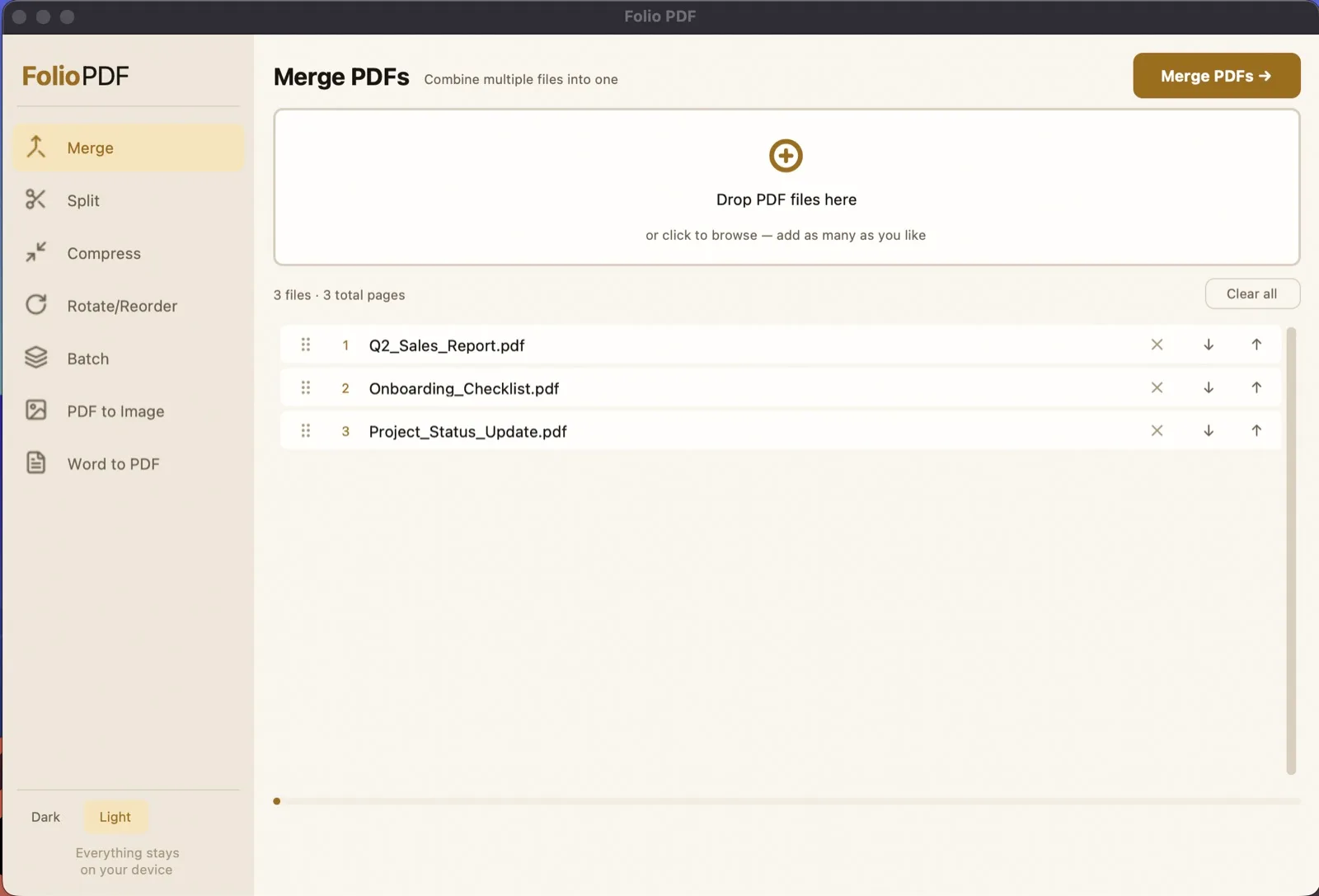
I got tired of uploading documents to a website just to merge two PDFs. I built Folio PDF as a desktop app for the jobs I kept needing: merging files, extracting pages, compressing a document and processing a whole folder. The document processing happens on my own computer.
The problem
Merging a couple of files is a small task. Having to find a service, upload the documents and download the result adds steps, especially when the files contain information I would rather keep on my computer.
The same thing happens with page extraction, rotation and compression. I wanted those jobs in one place, with a visible page order before saving and a way to apply an operation to several files.
What I built
Folio is a Python app with a CustomTkinter interface. It uses PyMuPDF and pypdf for PDF operations. Files can be merged in a chosen order, split by ranges or selected thumbnails, and rotated or rearranged in a page grid.
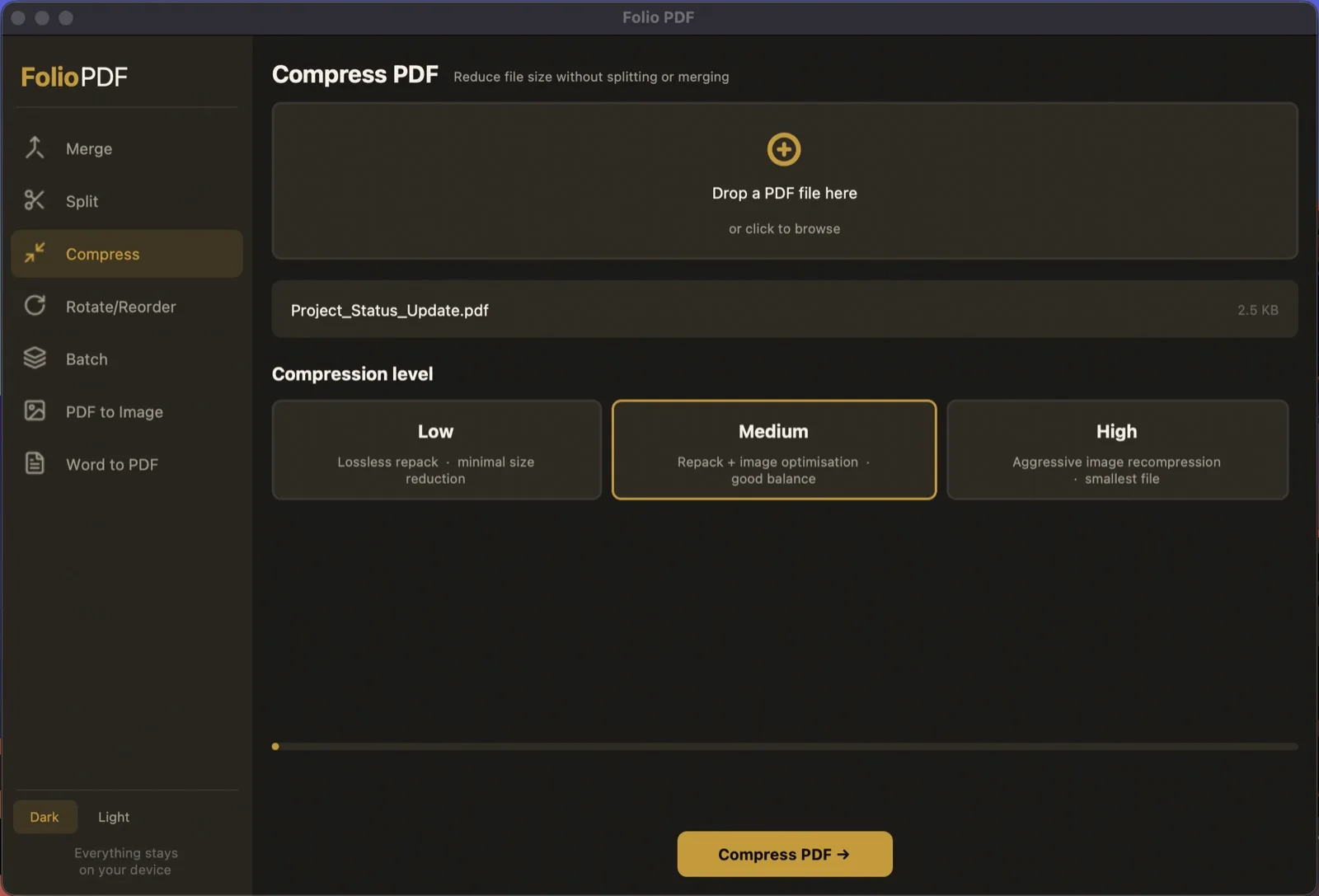
Compression has three levels. The medium and high settings also recompress embedded images, which gives another way to reduce a large file when rewriting its PDF structure is not enough.
The batch tools work on a whole folder: compress or rotate its PDFs, export their pages as images, or merge them into one document. Image export supports PNG and JPG at 72, 150 or 300 dpi.
Keeping the workflow visual
Page numbers are useful when I already know what I need. Thumbnails are better when I am deciding which page to keep or where it belongs. The app offers both page-range splitting and thumbnail selection, and lets me drag pages into a different order.
That keeps the choice close to the document itself. I can check the order before writing the result instead of repeatedly saving a file, opening it elsewhere and starting again.
Why Word conversion uses Word
The Word-to-PDF feature hands conversion to Microsoft Word through docx2pdf. I chose to use Word's own rendering rather than recreate its layout with a separate document library.
That choice adds a dependency: Word needs to be installed for this feature. It is a separate requirement from the PDF operations, which use the local Python libraries.
What I have now
One local app covers the document jobs that previously sent me looking for another website. It handles individual PDFs and folders, and lets me inspect page order in the interface.
The project is public, with screenshots and source code. I built it locally before publishing it in one commit, so the repository records the finished app rather than an incremental development history.
What it doesn't promise
- It was built on macOS. Windows gets less testing, so I do not present both platforms as equally verified.
- Word conversion requires Microsoft Word and uses its rendering.
- Compression depends on the file. Recompressing images can trade image quality for a smaller output.
- I have not published a benchmark for processing speed or typical file-size savings.
Have a similar workflow?
I build document tools for businesses that repeatedly combine files, prepare reports or process folders of PDFs. If you have a workflow like that, write to me at luka@puhmeister.dev.